Orca Perforce support
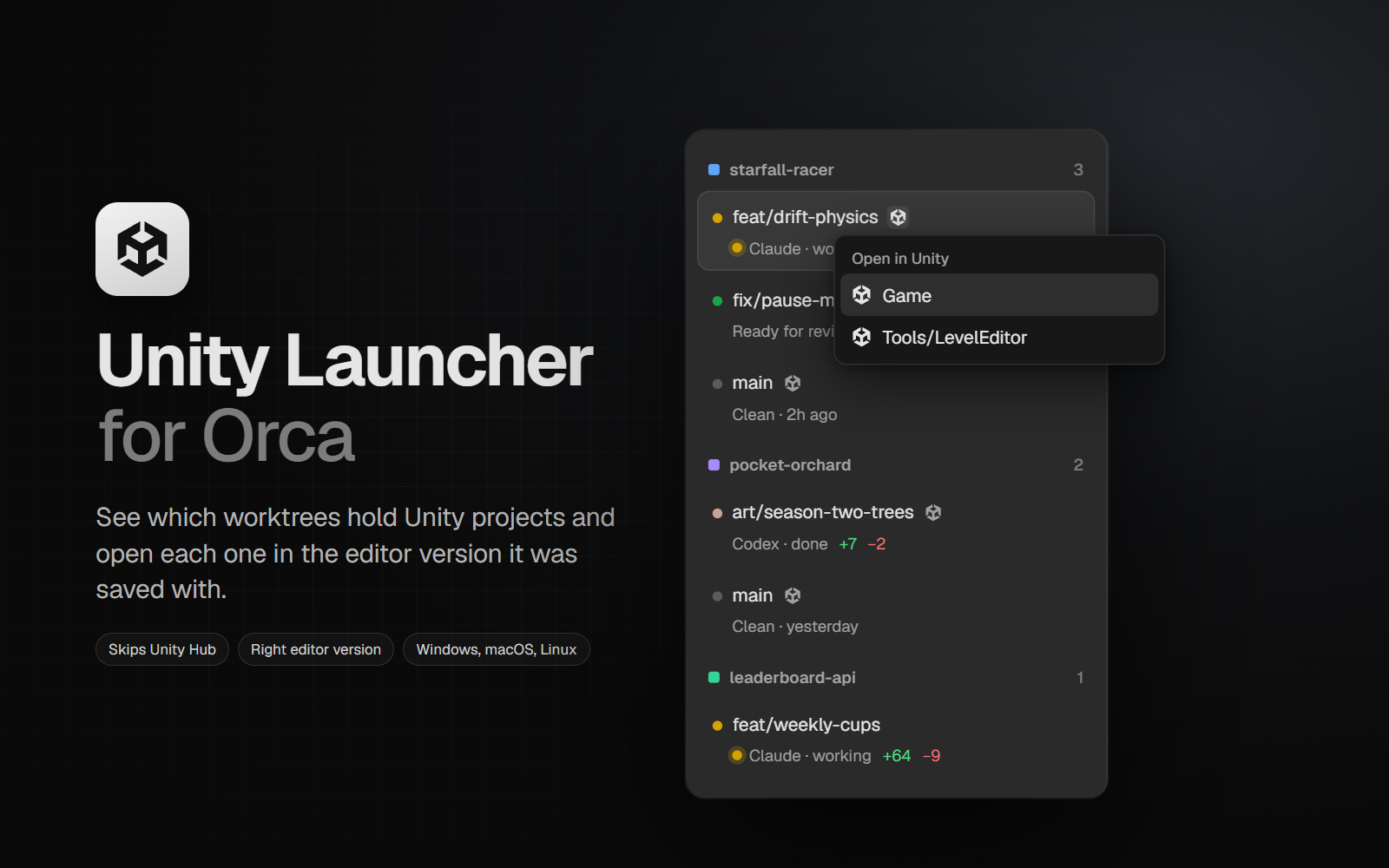
Orca gives every coding agent its own workspace, built on Git worktrees. This build does the same for Perforce: open a folder inside a Perforce client workspace and Orca treats it like a Git project.
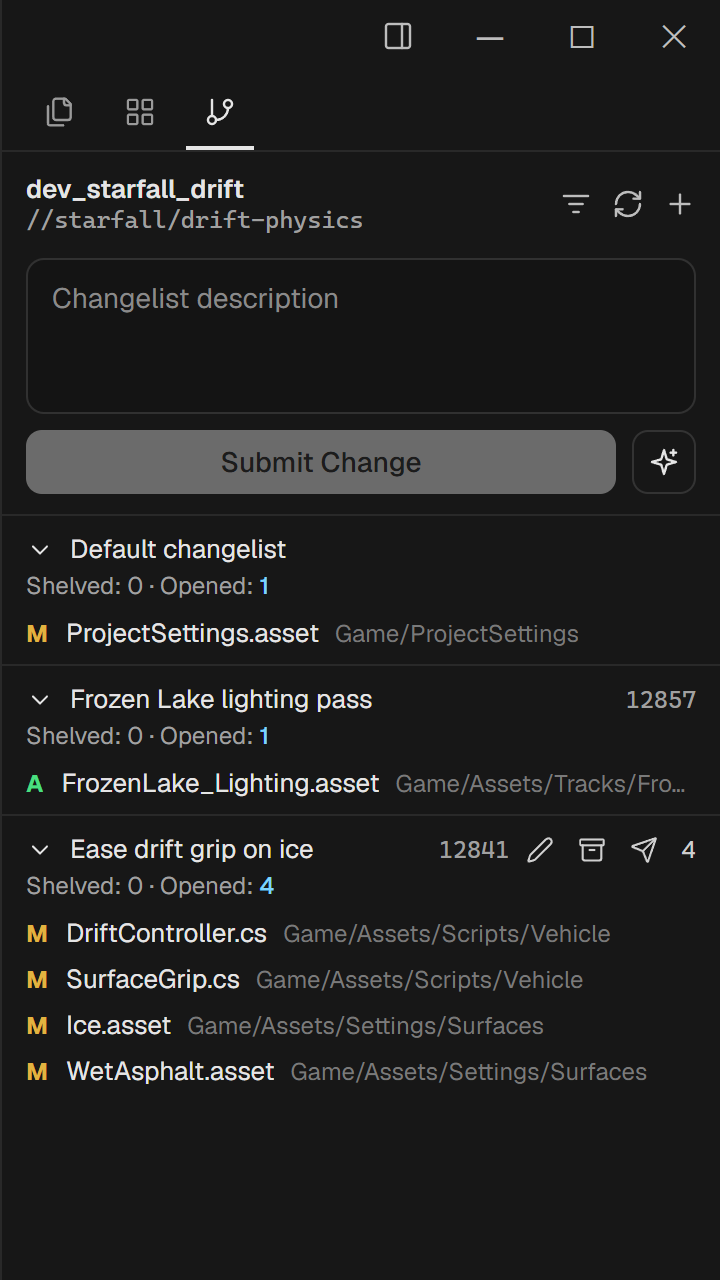
- Source Control panel for Perforce: default and numbered changelists, files modified but not opened, new files, diffs against
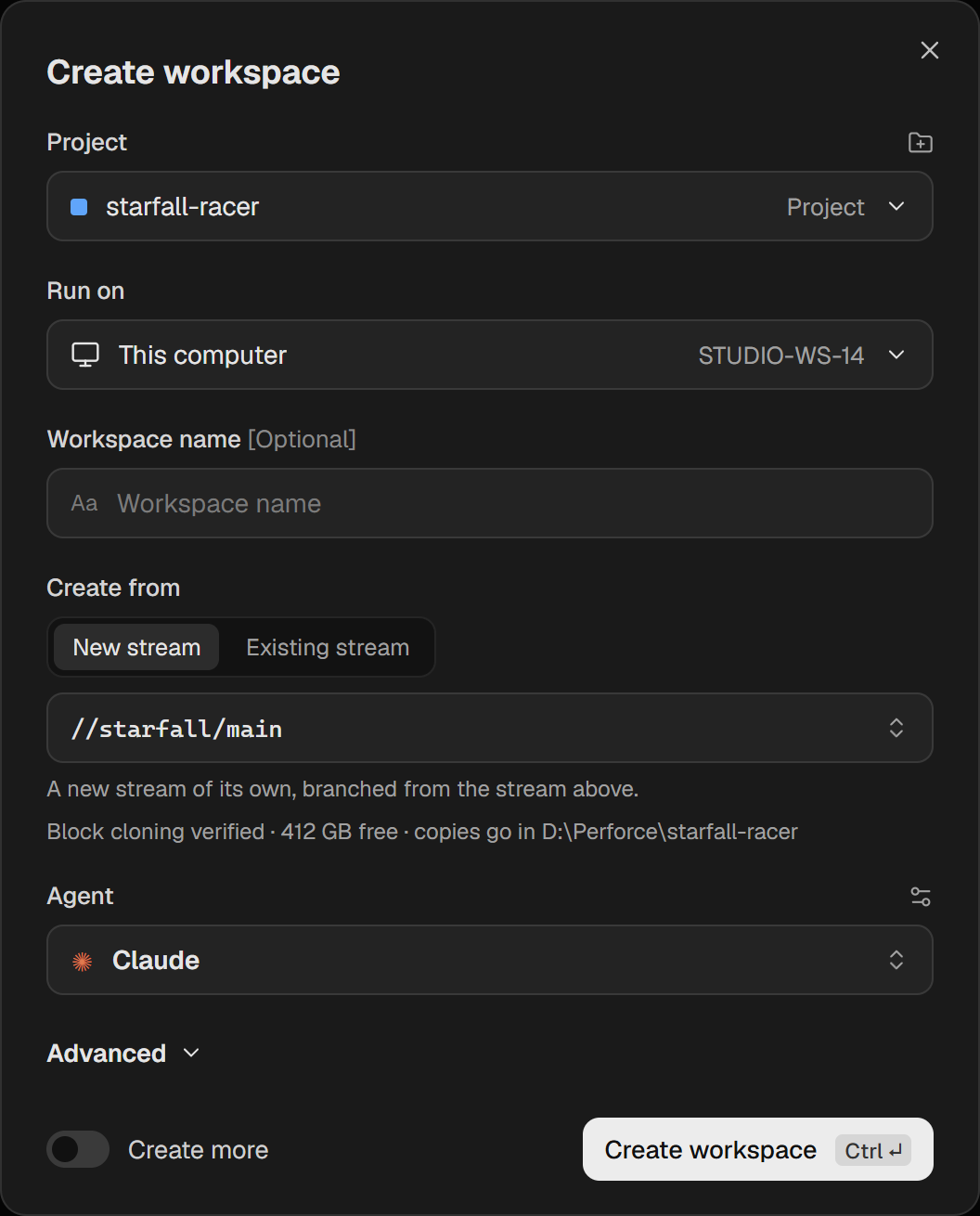
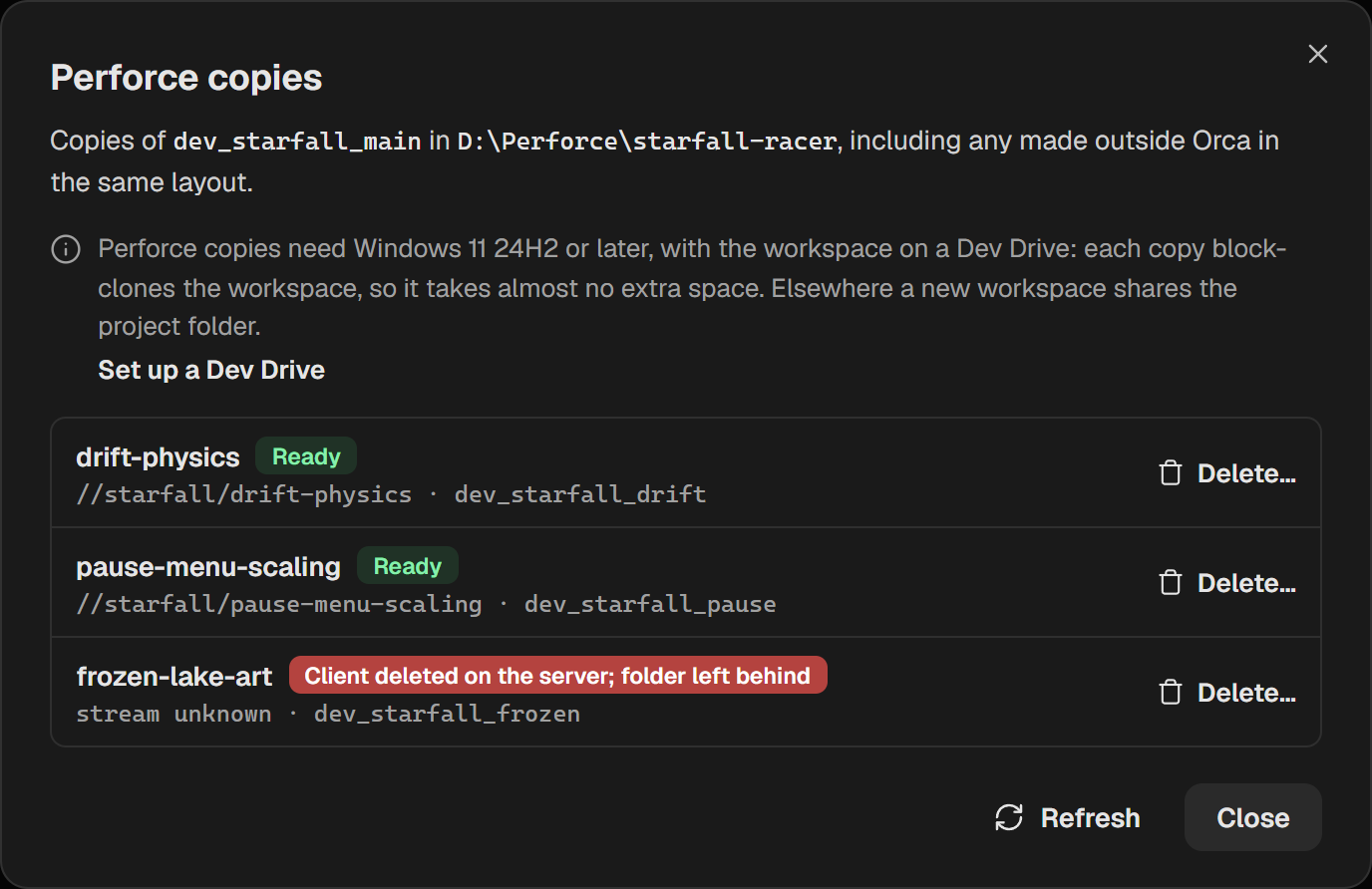
#have, shelves, submit, sync, moving files between changelists and AI-drafted changelist descriptions. Read-only files are opened for edit when you save them. - A Perforce copy per agent: Create workspace gives each agent its own copy of the workspace, with its own folder, its own client and, by default, its own stream. You can also start on an existing stream, for example to continue a teammate's work.
- Copies that cost almost nothing: copies are block-cloned on a Windows 11 Dev Drive or cloned on macOS APFS, so an 80 GB Unity workspace takes about 1 GB until files change.
- Local, SSH or a paired Orca server:
p4only needs to be installed where the workspace is.